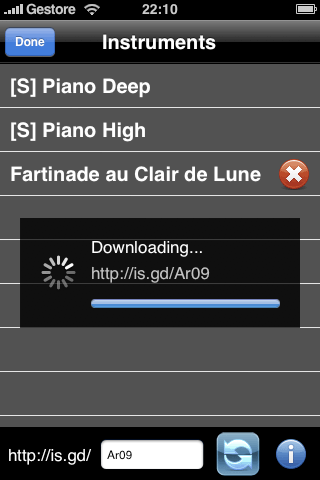
- All samples MUST be under 5 seconds
- All samples should be converted to CAF IMA4 format for better compression and ensure they will actually play (see step 2)
AnySound Piano:
Create your own instruments !
This tutorial assumes you have access to a mac, to do the .caf:ima4 conversion. There are certainly similar tools for doing the same in windows or linux around, I just don't know about them.
1. Recording the sounds
Use a free application like audacity to record your sounds. Audacity can export directly to .caf format.
You need to create one sample for every key. The keyboard has 7 white keys and 5 black keys that should be named as shown in the following table. Numbering start from bottom. So 'snda-1.caf' is the sample for the white key at the bottom and 'snda-7.caf' the one for the white key at the top. Lower numbers mean notes with lower pitches.
| White Keys | Black Keys |
|
|
2. Converting the sounds
To save time (and also avoid bugs when playing other types of sounds), all sounds must be converted to CAF IMA4.
Just create a folder named 'comp' in the folder where you have saved the sounds. And run the following commands in the terminal to convert all the sounds to CAF:IMA4.
This assumes your files are named as in the table above, but the afconvert command will work also with .wav or .aiff files.
	afconvert snda-1.caf comp/snda-1.caf -d ima4 -f caff

afconvert snda-2.caf comp/snda-2.caf -d ima4 -f caff

afconvert snda-3.caf comp/snda-3.caf -d ima4 -f caff

afconvert snda-4.caf comp/snda-4.caf -d ima4 -f caff

afconvert snda-5.caf comp/snda-5.caf -d ima4 -f caff

afconvert snda-6.caf comp/snda-6.caf -d ima4 -f caff

afconvert snda-7.caf comp/snda-7.caf -d ima4 -f caff

afconvert sndb-1.caf comp/sndb-1.caf -d ima4 -f caff

afconvert sndb-2.caf comp/sndb-2.caf -d ima4 -f caff

afconvert sndb-3.caf comp/sndb-3.caf -d ima4 -f caff

afconvert sndb-4.caf comp/sndb-4.caf -d ima4 -f caff

afconvert sndb-5.caf comp/sndb-5.caf -d ima4 -f caff
Hint:
If you're not familiar with the terminal you can use this app to open a terminal at the correct path.
3. Create info.txt
The final package should include a simple text file (encoded in UTF-8) that contains two lines, with the name and an information line. These will display in the application when your instrument gets installed. So just open textedit or your favorite text editor and enter something like this:
	label=Joyful piano


	about=by Mike Trentinetto
Obviously you should only change the part on the right of the equal sign.
4. Packaging
 Now all you have to do is create a zip file with the info.txt file and all the .caf sound files.
Also, MAKE SURE not to include any folder structure, just the files!
Now all you have to do is create a zip file with the info.txt file and all the .caf sound files.
Also, MAKE SURE not to include any folder structure, just the files!
The final resulting zip file should be just like this one.
http://is.gd/ALlV
5. Creating a short link
Upload your file anywhere on the web. It can be on your blog or on any service like mobileme or drop.io. Then all you need to do is create a short link using the is.gd short url service. You have to use is.gd since it's the only short url service directly integrated in Any Sound Piano.
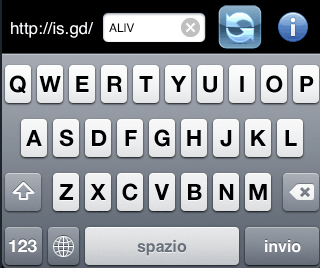
All one needs to do in order to use your sample is type the rest of the url in AnySoundPiano, as shown in the screenshot on the right.